Google Search Console
Google Search Console is Google’s most reliable source on how it sees your site. What it is, what it is for and what each of its main reports measures.
In this article8
You have gone through Search Console and the figures do not quite match what you see in Analytics, or you simply do not know where to start interpreting them. Google Search Console is the free tool Google gives any website owner to answer one very specific question: how Google sees your page, what it indexes from it and which queries it appears for in search.
In this article you will see what it is exactly, what it is for, how you verify a property and what each of its main reports measures, without going through a step-by-step tutorial of every menu option.
What is Google Search Console?
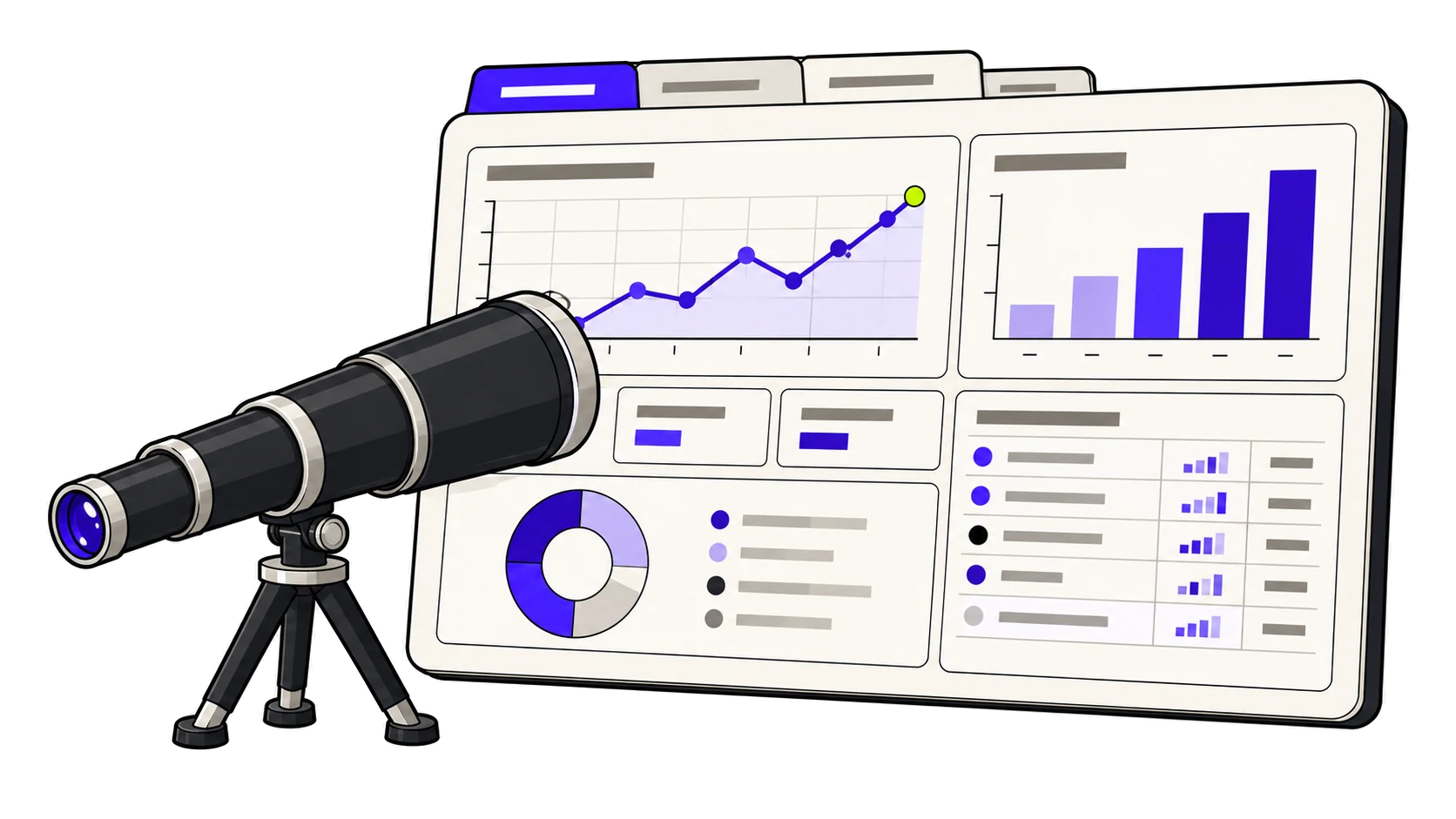
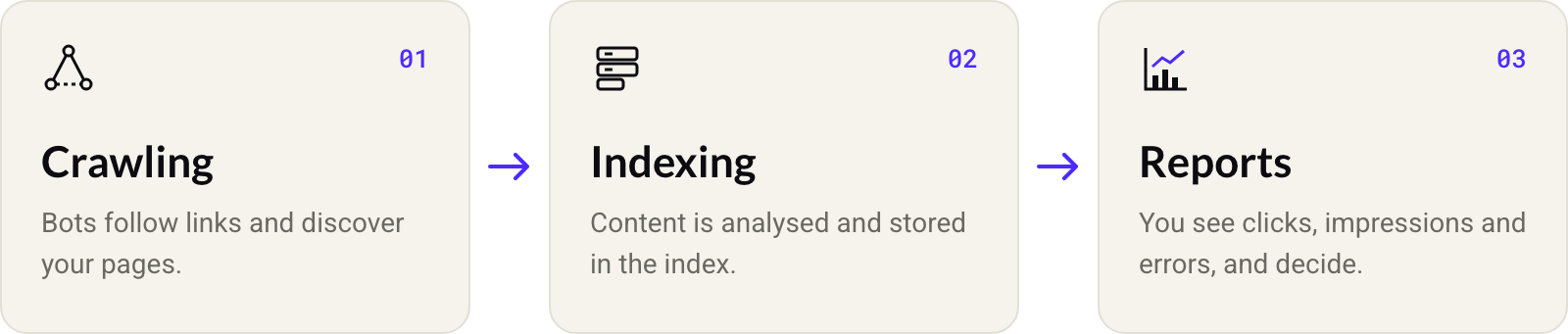
Google Search Console is a free Google service that lets you monitor, maintain and troubleshoot problems with a website’s presence in search results. It is not a web analytics tool in the usual sense: it does not measure how users behave inside your site, but the relationship between your site and Google’s crawler and index.
One important nuance: registering or verifying a property in Search Console does not improve your rankings by itself. The tool shows you information, it does not act on your SEO.
The improvement depends on what you do with that information:
- fixing indexing errors;
- correcting a badly implemented piece of structured data;
- understanding why a page you believe is relevant does not appear in any result.
From Google Webmaster Tools to Search Console
If you have been in SEO for years, you may still search for “webmaster tools” instead of “Search Console”. It is the same service: Google redesigned and renamed the tool some time ago, expanding features such as the Performance report or URL Inspection.
The old name still drives searches because many professionals learned the tool under that label, but today all the official documentation uses “Search Console” exclusively.
What is Google Search Console for?
In practical terms, Google Search Console covers five tasks any SEO team needs to carry out regularly:
- See which search queries bring traffic to your site, and with what clicks, impressions and average position.
- Spot indexing errors: pages Google cannot or will not index, and why.
- Submit sitemaps to make your URLs easier to discover.
- Request indexing of a specific URL after publishing or changing it.
- Monitor page experience (Core Web Vitals) and the status of the rich results generated from your structured data.
None of these tasks replaces a full technical analysis, but without this data it is impossible to tell whether a traffic problem comes from content, crawling or indexing.
How it works: verifying ownership of a site
Before you see any data, Google needs to check that you really control the site you want to monitor. This process is called verification, and it exists to stop anyone from looking at the search data of a domain that is not theirs.
Google offers several verification methods, and you can pick whichever suits your technical access:
- DNS record: add a TXT record in the domain’s configuration.
- HTML file: upload a specific file provided by Google to the root of the site.
- HTML tag: insert a meta tag in the
<head>of the home page. - Google Analytics: if you already have Analytics set up with editing permissions on that property.
- Google Tag Manager: if the container is already published on the site.
The DNS method has a practical advantage: it verifies the whole domain (every subdomain and protocol), whereas the others verify only the exact URL you registered. For a site with several subdomains, it is usually the most convenient option in the long run.
The main Search Console reports
Once the property is verified, Search Console organises the information into several reports. Each one answers a different question, and it helps to be clear about which to open depending on the problem you are investigating.
Performance
Shows clicks, impressions, CTR (clicks as a percentage of impressions) and average position, filterable by query, page, country, device or date. It is the most consulted report because it connects directly with the question “how is my organic traffic doing?”.
One development to keep in mind if you also work on generative AI optimisation (GEO): in June 2026 Google announced a report in beta, with limited access for a small group of properties, measuring impressions specific to AI Overviews, AI Mode and Discover’s generative features.
For now it measures impressions only (no clicks, CTR or queries) and is not available to every account, so treat it as a feature in development rather than a standard report just yet.
Page indexing (Coverage)
This is probably the most important report for technical SEO. It shows which URLs on your site are indexed and which are not, grouping the latter by reason: blocked by robots.txt, 404 error, redirect, duplicate content without a clear canonical, or a noindex tag, among others. When organic traffic drops with no obvious explanation, this is the first report to check.
Sitemaps
Lets you submit your site’s sitemap.xml file so Google can discover your URLs more easily, and shows how many of the submitted URLs have been indexed correctly. If you want to understand how a sitemap is built and maintained properly, we cover it in more detail in how the Sitemaps report works.
URL Inspection
Lets you check the status of a specific URL: whether it is indexed, when it was last crawled, which version (mobile or desktop) Google used and whether any problem has been detected. From here you can also request indexing of a new or recently changed URL.
Page Experience and Core Web Vitals
Groups your site’s URLs according to whether they meet the Core Web Vitals thresholds (loading speed, visual stability and interactivity) on mobile and desktop devices. A poor page experience does not block indexing, but it can affect how Google prioritises what to show among similar results.
Enhancements and rich results
Shows the status of the structured data (schema.org markup) Google has detected on your site: which items are valid, which have errors and how many pages are affected in each case. It is the direct link between your JSON-LD implementation and what Google can show as a rich result in search.
Search Console compared with other tools
Search Console is often confused with other tools that cover different ground:
| Tool | What it measures | When to use it |
|---|---|---|
| Google Search Console | How Google sees your site: indexing, crawling, queries and rich results | To diagnose crawling, indexing or search visibility problems |
| Google Analytics | How users behave once they reach your site | To analyse conversion, navigation or retention |
| Bing Webmaster Tools | The Search Console equivalent for Microsoft’s search engine | If traffic coming from Bing carries real weight for your business |
None of them replaces the others: they are complementary. Search Console tells you whether Google can see and understand your page; Analytics tells you what users do once they get there.
What Search Console does not tell you
Search Console is a reliable source of data, but it has a clear limit: it tells you what is happening (a page that is not indexed, a piece of structured data with an error, a drop in impressions) without always explaining why, or how to fix it at a technical level. Reading the coverage or rich results reports correctly usually means going through the source code, the HTTP headers or how crawlers actually behave against your site, which goes beyond what the tool itself can diagnose.
A technical diagnostic focused on accessibility and structure can fill in exactly that part of the analysis, without replacing what Search Console already shows you.
Frequently asked questions about Google Search Console
How do you request indexing of a URL in Search Console?
From the URL Inspection tool: paste the URL you want to check, wait for Google to show its current status and, if it is not indexed, click “Request indexing”. This adds the URL to a priority crawl queue, but it does not guarantee immediate or automatic indexing.
What are impressions in Search Console?
An impression is counted every time a URL from your site appears in a search result visible to a user, even if they do not click it. That is different from a click, which does mean the user landed on your page.
What counts as a good CTR in Search Console?
There is no single benchmark figure: CTR depends on average position, on the type of query (informational, transactional, branded) and on whether elements such as featured snippets or rich results are competing on that same results page. It is more useful to compare the CTR of the same page or query over time than to look for a universally “good” number.
What are the Core Web Vitals that Search Console shows?
They are a set of Google metrics that assess a page’s loading experience, visual stability and responsiveness. Search Console groups your site’s URLs according to whether they pass the recommended thresholds for each metric, on both mobile and desktop.
Is Search Console the same as Google Analytics?
No. Search Console measures how Google crawls, indexes and shows your site in search; Analytics measures what users do once they reach your page (page views, time on site, conversions). They complement each other, but they do not answer the same question.
Can Search Console data be exported to other tools?
Yes. Search Console lets you export data straight to spreadsheets or connect it to visualisation tools such as Looker Studio, and it also offers an API for anyone who needs to automate data extraction at a larger scale.
Conclusion
Google Search Console is the starting point for any technical SEO diagnostic: without it you do not know whether a traffic problem comes from content, crawling or indexing.
But the data it provides needs interpreting, especially in the coverage and rich results reports. If you have just verified your property, start with the Page indexing report: it is usually the first to reveal whether something is blocking your visibility in search.